Showing posts with label sync. Show all posts
Showing posts with label sync. Show all posts
Tuesday, January 31, 2017
Easily Backup Photos And Videos From Multiple Android And iOS Devices To Your Desktop With DAEMON Sync
Easily Backup Photos And Videos From Multiple Android And iOS Devices To Your Desktop With DAEMON Sync
DAEMON Sync is a tool created by the DAEMON Tools developers, which allows users to backup files from mobile devices to the desktop, over the local wireless network.
 |
| DAEMON Sync Android app |
The application is free to use but not free and open source software, and it consists of two parts: the server, which youll have to install on your computer, available for Linux (only deb files available), Windows and Mac OS X, and the mobile app, which runs on Android and iOS.
What makes DAEMON Sync both interesting and useful in various situations is that it requires pretty much no configuration and the data transfer is done on your local network (which is good for security/privacy reasons as well as transfer speed and the fact that you dont need a working Internet connection to use it), without using a third party server.
Also, the app allows backing up multiple devices to the same computer and you can browse the files that are backed up to your desktop from any of the devices connected to it via DAEMON Sync (you can choose which devices are allowed to do this).
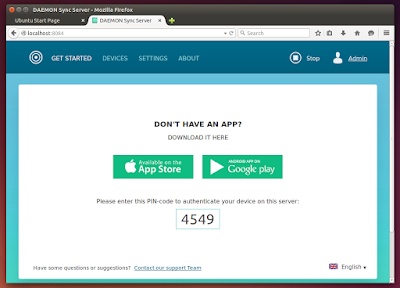 |
| DAEMON Sync desktop (server) app - authenticating device |
DAEMON Sync is more of a backup than a sync tool. Thats because it doesnt watch your files and continuously synchronize them and instead, it comes with a configurable sync interval which, by default, is set to 15 minutes (this can also be done on demand).
Furthermore, the only way to add files from your desktop to a mobile device via DAEMON Sync is to place them in a directory named "Sync Folder", which the app creates both on your mobile and desktop and it cant be changed.
However, according to the developer comments posted on Google Play, two-way sync is currently under development so it should be available at some point in DAEMON Sync.
 |
| DAEMON Sync desktop (server) app - devices |
Think of DAEMON Sync as an easy way to backup your familys phone videos and photos to a single desktop computer, with access to all of them from each mobile device that was paired with the DAEMON Sync Server app, even without an Internet connection (as long as youre connected to the local network, obviously).
If you want more flexibility and options, including being able to sync files across multiple desktops, etc., BTSync and Syncthing along with "traditional" solutions like Dropbox are the obvious choices, but for an easy photo/video mobile to desktop backup solution that runs on your local network and doesnt need an Internet connection to work, DAEMON Sync does the job pretty well.
Install Daemon Sync
Download DAEMON Sync (available for Linux: 32 and 64bit deb, Windows and Mac OS X / iOS and Android)
To use DAEMON Sync, youll need to install the iOS / Android app on your mobile device and the server application on your Linux, Mac OS X or Windows computer.
Note: the .deb is pretty badly packaged, thats why you wont be able to install it using GDebi - use Ubuntu Software Center, dpkg via the command line, etc. to install it. Also, once you install it, you wont find DAEMON Sync in the menu however, you should find a shortcut on your desktop. You can also access it directly by typing "localhost:8084" in a web browser.
Its also important to mention that on Linux, the default storage folder is "/media/DAEMONSyncStorage/", and inside this folder youll find "Sync Folder" which allows you to easily sync files back to your mobile device. This folder can only be modified by root, so you should change its permissions (for instance, you can change owner using chown: "sudo chown sudo chown -R $USER "/media/DAEMONSyncStorage". Hopefully this will be fixed in a future DAEMON Sync release.

Available link for download

Monday, October 10, 2016
Enpass Password Manager Gets ownCloud WebDAV Sync Support Debian Ubuntu Repository
Enpass Password Manager Gets ownCloud WebDAV Sync Support Debian Ubuntu Repository
Enpass for Linux was updated today with ownCloud/WebDAV sync support, improved search functionality and more. Theres also a new Debian/Ubuntu repository for easily installing and updating Enpass.

Enpass is a multi-platform password manager which had its first Linux release back in February. The application is available for iOS, Android, Windows Phone, BlackBerry, and for desktops: Windows, Mac and Linux. The desktop apps are free to use with no limitations while the mobile apps offer in-app purchases (Android, iOS) or cost 9.99$ (Windows Phone).
While Enpass is not open source software, it uses SQLCipher, an open source extension to SQLite that provides transparent 256-bit AES encryption of database files.
For more information please see our previous Enpass article.
The latest Enpass for Linux brings two highly demanded improvements: ownCloud/WebDAV sync support (the app could already sync to Dropbox, Google Drive, OneDrive, Box or a folder, for use with other apps) as well as a Debian/Ubuntu repository which you can use to easily install the app and receive automatic updates.
Also, while Enpass is only available for 64bit on Linux, the newly released repository provides both 32bit and 64bit packages.
Other changes in the latest Enpass 4.6.0 include:
- Password fields will now keep history of last 5 passwords;
- Password Strength detection algorithm is improved;
- Search functionality is improved;
- Show number of items in Sidebar;
- Option to change Enpass data Location;
- Search can be restricted to titles only;
- Translations are improved;
- Other bug fixes.
Download Enpass
Debian, Ubuntu (as well as other Debian/Ubuntu-based distributions like Linux Mint, elementary OS, etc.) users can install Enpass for both 32bit and 64bit by using its new official repository. Add the repository and install Enpass using the following commands:
sudo apt-get install curl
curl -s http://repo.sinew.in/keys/enpass-linux.key | sudo apt-key add -
echo "deb http://repo.sinew.in/ stable main" | sudo tee /etc/apt/sources.list.d/enpass.list
sudo apt-get update
sudo apt-get install enpass
Download Enpass Password Manager (available for desktops: Linux 64-bit only, Mac OS X and Windows as well as mobile: iOS, Android, Windows Phone and BlackBerry)
Available link for download
Subscribe to:
Posts (Atom)