Showing posts with label features. Show all posts
Showing posts with label features. Show all posts
Sunday, October 23, 2016
Exploring the Developer Options on Android 4 Features That You Should Enable
Exploring the Developer Options on Android 4 Features That You Should Enable

Exploring the Developer Options on Android: 4 Features That You Should Enable
Developer options are hidden in the settings menu. It is hidden the by OEMs intentionally so that you don’t play with it and cause your smartphone to misbehave. Now, I don’t mean to frighten you by saying playing with the developer options may harm your smartphone but there is a possibility that it might make your smartphone misbehave if you enable the wrong settings. By misbehaving I mean enabling wrong settings can make your phone run really poor.
Once enabled, you will get tons of new settings that could improve your experience with your phone if right settings are enabled. These settings are useful to developers who create apps on android and test it in different ways. But some of the settings in developer options could improve your day to day user experience.
I’ll share with you 4 such settings in this article, but first, you must enable developer options.
Enabling Developer Options on Android
As I mentioned above, developer options are hidden in the settings menu and for good reasons. But if you are willing to try it then open you phone’s settings and scroll all the way down to “About phone” and tap on it. Now again go to the bottom and tap 5 or 7 times on “Build number”. The amount of taps required depends on the manufacturer. Keep tapping it until you see a small dialogue letting you know that you are now a developer.
After you’ve completed this, head back to the settings main menu and you’ll find the Developer options under the “System” subheading.
The Settings:
1. Enable USB Debugging
USB Debugging allows your device to communicate with your computer over USB port via Android Debug Bridge (ADB). It is essential as it is a prerequisite for unlocking bootloader and installing custom ROMs. It also lets you make a backup of your device information on PC and use ADB commands.
2. Make Your Phone Faster
Via developer options you can make your phone faster by reducing the animations. You can either increase the speed of animations or completely disable it. Disabling animations will increase the speed in which the apps open on your phone.
To manage the animations, head to the developer options and look for window animation scale, transition animation scale, and animator duration scale under the subheading drawing. Now, decrease the numbers to reduce animation time or completely turn it off to make your phone open apps faster.
3. Mock Location
Allowing mock locations will let you alter location information, making your phone think it’s somewhere it really isn’t. If you use an app like Fake GPS Location with it, you can use region-restricted apps from Google play store.
4. Force 4x MSAA
Enabling this forces multi-sample anti-aliasing (MSAA). In simple words, it improves the quality of graphics in games and apps that run OpenGL ES 2.0. One thing that is important to mention here is that while it increases the performance of hardware, it will consume the battery faster. It is available under hardware accelerated rendering subheading.
Now that you know some of the useful settings from developer options, go ahead and enable them as per your requirement. But don’t go playing around these settings carelessly. And in case you have done something that you are not sure of, you can reset everything by switching off the developer options.
Available link for download

Wednesday, October 12, 2016
Galaxy S4 tips 21 hidden features tricks and hacks
Galaxy S4 tips 21 hidden features tricks and hacks
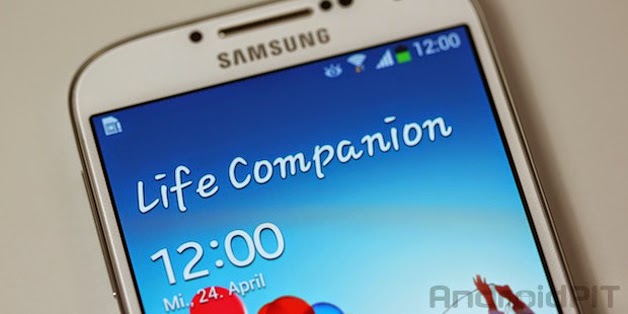
1. Disable S Voice on the Galaxy S4 for faster Home button response
Not sure if you know this, but the double press of the Home key to bring up S Voice actually has a built in delay. This means if you press it once to go back to the Home screen itll actually lag a little in case you were planning on double pressing. If you disable the double press shortcut to access S Voice, youll get a faster return to the Home Screen. Just go into S Voice, hit the menu soft key, Settings, and uncheck Open via the Home key box.
2. Swipe contacts to call or text on your Galaxy S4
When youre in your Contacts, instead of tapping a contact and selecting the action to perform from their contact profile, you can simply swipe left or right to call or text them instantly. The best thing is you can change your mind: if you start to swipe to the right to call someone, then realize they are at work you just swipe back to the left and youll get a text window instead. Theres no speed requirement either, so if youre a little slow-witted, you can pause mid-swipe, figure out which option is best and then continue with the appropriate swipe.
3. Use Galaxy S4 hidden settings
This is achieved by using a brilliant app called Note 2 Hidden Settings. Yes, its for the Galaxy Note 2 but it works on many other Samsung devices too. It simply puts a user interface over the top of a bunch of hidden CSC files so you can change them easily. The only thing is your S4 needs to be rooted for it to work. Some of the great things you can do include managing the various irritating sounds the S4 makes, like disabling the camera shutter sound and more. The app isnt guaranteed to work on every device so please dont ask me to fix it if it doesnt work for you!
4. DIY Galaxy S4 wireless charging
Listen up tightasses! You can make your own DIY wireless charger for the Galaxy S4 without needing to spend a small fortune on Samsungs official Qi-equipped back panel and charging platter. Theres not much to this hack, other than buying a cheaper Qi-rear cover and popping the guts out and inserting them into your S4 rear cover. All in all itll cost you about $25 and brings a little handicraft to your smartphone. Check the video out below from HackinTech to see what youll need and how simple it is to make your own wireless charging back panel.5. Use the Galaxy S4 IR blaster to control your TV
This is an old feature that a lot of people still dont seem to use. Just go to the WatchON app, set up your country and service provider (if you want a TV guide as well) and add the remote widget to your Quick Settings menu or even your lock screen so you can control your television, set top box or DVR from the comfort of your smartphone. You can track your favorite shows, set reminders and even get suggestions from WatchON about shows you might like. Definitely an underused feature.
6. Take photos and control alarms with your voice
An oft-forgotten feature of Samsungs voice control is the ability to take photos or control your alarm clock with your voice. Everyone remembers you can control incoming calls and Samsungs ChatON service verbally, but saying cheese to snap a picture is a great way to avoid camera shake when you take selfies. Likewise, simply saying snooze from under your pillow to stop that infernal alarm clock is a godsend. You can of course also control your music playback this way too. Just go into your Settings menu at the bottom of the My Device tab and youll see the Voice Control switch. Tapping on it once enabled will open the various settings for each voice control feature.
7. Ditch TouchWiz for Android 5.0 Lollipop
Though the Android 5.0 Lollipop update is likely not to come to the Galaxy S4 before mid-2015, there’s no reason why you can’t get some Lollipop flavour beforehand. If you don’t have root access, there are many APKs and apps available, including the Nova Launcher, that will bring many of the Android 5.0 features to your phone. If you do have root, you will likely be able to flash an unofficial version of the Android update in the near future.8. Use the Galaxy S4 home screen slider
Did you know that you dont need to swipe to switch between home screens? Just above the dedicated app shortcuts on the home screen is a little indicator that shows you which screen youre on in relation to the main home screen. Instead of swiping between home screens, you can simply slide your finger across this indicator to quickly and fluidly scroll through your various home screens which will be slightly minimized. You dont even need to hold your finger down first (although you can), just slide your finger along the indicator and it will bring up numbered screens for rapid navigation.
9. Quickly access apps from the Galaxy S4 lock screen
To quickly access some of your main apps, choose which app shortcuts you would like to have access to on the lock screen. In addition to the camera app shortcut, there are some other ones, like phone, messages, Google Search, and Internet.
10. Get more out of your camera
Did you know you can add a camera shortcut to your lock screen and connect your Samsung camera to your smartphone? To get the camera shortcut on your lock screen, go to Settings, My Device tab, Lock Screen, enable multiple lock screen widgets (if you have others already enabled), tap on lock screen widgets and flip the switch for Favorite apps or camera, then select Camera.Now, you can simply swipe to the left from your lock screen to launch the camera. To link your digital camera with your S4, download the Samsung Smart Camera app and youll be able to launch Remote Viewfinder, AutoShare and MobileLink direct from your smartphone. The best thing is that when youre using your camera the app will automatically connect to your phone.

11. Browse Galaxy S4 Quick Setting buttons
Want to check out your Quick Setting buttons in a jiffy? That is not too much of an issue, as all you need to do is swipe two of your fingers down on the status bar, and you’re good to go. From here, you can access a variety of settings, like Wi-Fi, Bluetooth, NFC, as well as some Samsung specifics, like Smart Pause, and Smart Scroll. To edit the Quick Settings, tap on the pencil icon on the top right corner.
12. Trace-To-Type on your Galaxy S4
Forget about tapping on individual letters on the virtual keyboard to compose an e-mail or send a text message/SMS. All you need to do is turn on Trace-To-Type on the virtual keyboard, and you will find your text input efficiency level shoot through the roof in no time at all. To turn on Trace-To-Type, go to the keyboard, tap on the ‘Cog’ icon, turn on “Predictive Text” and choose “Continuous Input”.
13. Set up Adaptive Display on your Galaxy S4
You know how early generation color displays on mobile phones tended to deliver washed out colors whenever you stepped outdoors? Well, technology has certainly advanced a whole lot, especially when it comes to mobile displays. On sunny days, it is advisable to turn on the Adapt Display function so that you can still keep tabs on your connected life under direct sunlight without squinting. Go to Settings > My Device > Display > Screen Mode > Adapt Display, and you’re good to go.
14. Switch on the floating keyboard
Be like David Copperfield and make your virtual keyboard float (if your attempts at floating corporeal items have fallen flat). Folks who tend to multitask on their Galaxy S4 can attest to the added flexibility and convenience of a floating keyboard. All you need to do is pop open the virtual keyboard, hold down on the keyboard settings button, and enable “Floating Keyboard”.
15. Prolong Your Galaxy S4’s battery Life by setting a Wi-Fi timer
Ah, one of the banes of modern day smartphones that come with just about everything but the kitchen sink would be its battery life - or rather, the lack of it. After all, when you’re done playing with all the functions and enjoying games on it, the low battery warning should pop up pretty soon. To eke out additional battery life, how about ensuring that your Galaxy S4 has been set to auto connect/disconnect from a Wi-Fi network? Doing so is a cinch, just go to Settings > Wi-Fi > Menu > Advanced, and set the time frame under Wi-Fi Timer.
16. Exploit Samsungs secure boot
Some network providers provide the Galaxy S4 with an unlocked bootloader, so you can easily flash whatever custom ROM you like. But AT&T (SGH-I337) and Verizon (SGH-I545) models have a locked bootloader. A little while back, a whiz by the name of Dan Rosenberg identified a critical weakness in Samsungs locking mechanism that allows custom, unsigned kernels and recovery images to be booted without the usually-required signature checks. Its all a bit technical, but if this has piqued your interest, head over to Dans site17. First smart phone? Try Easy Mode on your Galaxy S4
Let’s face it, everybody has to start somewhere. If the Galaxy S4 is your first phone, it may seem a bit overwhelming when you first get it. Rather than having to call your 12 year old cousin over to explain how to use it, Samsung has integrated an “Easy Mode” into their device.To enable this mode, simply head to Settings > My Device > Home Screen Mode and you’ll be able to switch between your options (current mode and Easy mode).
Easy mode includes a much easier to use interface (which can be also customized), larger icons, and just provides a more intuitive environment for people who are new to using smart devices.

18. Use your Galaxy S4 with gloves
By far one of my favorite options for this device, however, it is turned off by default when you get your S4. As I’m out and about and live in a climate that often requires me to be wearing gloves, it’s always been a pain having to remove my gloves to use my smartphone (…or having to buy special gloves to be able to use this feature).To turn this setting on, simply head to your settings, then the Controls tab and scroll down to Auto-adjust touch sensitivity. Once enabled, this will allow you to use your touchscreen with gloves on your hands. Important to note: thin gloves do work the best, but we’ve had success when using thicker ski gloves.
19. Adapt the sound produced by the Galaxy S4
Another great feature about the Galaxy S4 is the ability for the device to customize the output of sound to your hearing. This is particularly useful for people who have some hearing issues or just want to be able to tweak the audio profile of their device.To turn on Adapt Sound, head to Settings > My Device> Sound > Adapt Sound and then follow the prompts. Once completed, you should notice a difference in the way the audio is output on your device and most improvements will be noted when wearing headphones.

20. Save battery with Galaxy S4 Smart Alert
I find that if I leave my phone down somewhere, I’ll subconsciously have the urge to keep checking it in case I get any alerts that I may have missed. This leads me to picking up my phone, unlocking it, looking at the screen, and then putting it back down. If I’m sitting at the computer typing (or doing anything really), this can lead to a bunch of useless checks within the span of an hour. I know. I need help.The S4 has an interesting feature that allows the device to vibrate when you pick it up if there are any important notifications that you missed. If you pick it up and nothing happens? Nothing to check!
To turn on this feature, head to Settings > My Device > Motions and Gestures > Motion > Smart Alert and turn it on. Really small feature, but ridiculously useful for someone like me.

21. Let the S4 choose your best photo
When you have the Best Photo mode activated on your S4, it will take 8 shots in quick succession (think of it like the camera taking 8 burst shots) and then suggest what it thinks is the best one. This is great for when you’re taking a photo of a group or another setting where you might have some variables that will cause a shot to come out wonky, such as kids and pets.To access this mode, open up your camera app and then click the Mode button. From there, just choose the Best Shot option. And while sometimes the “best” photo that it picks might not be the one you were thinking of, you can still scroll through the other 7 photos that were taken and choose them instead.
 There are obviously a lot of really cool Galaxy S4 camera features, many of which you might not use all the time but are fun once in a blue moon.
Did you try any of these tips for the Galaxy S4? Do you have any others?
Available link for download
Subscribe to:
Posts (Atom)